Using Multiple Databases
The 4Matrix ‘Database Switcher’ no longer exists as a separate application.
Instead, we have now programmed Launcher.exe (when launched), to prompt which database you wish to use, should it detect more than 1 on your system.
4Matrix references the Settings file in the 4Matrix folder, e.g. C:\Program Files (x86)\4Matrix\Settings to determine which server and database to connect to. To connect to more than 1 database, you will need a copy of the Settings file for each database. They will be identified using a ‘#’. These are generated by the 4Matrix Network Manager tool on your server.
- In order to set this up, start by opening the 4Matrix client folder on the server where the 4Matrix Network Manager is installed i.e. D:\4Matrix\Client Files
- Duplicate the Settings file and rename the copy version to Settings#SchoolDataA
- Now open the 4Matrix Network Manager tool and make a backup of your database (this is precautionary only)
- Now click Run Wizard
- Choose to create a new database at the relevant stage (call it something like SchoolDataB)
- Complete the rest of the wizard as normal
- Once back in the main Network Manager application, click the button that says ‘re-copy files’
- Go to your client install folder (i.e. D:\4Matrix\Client Files) and you should now see two settings files, the one you renamed (Settings#SchoolA) and a new Settings (which actually refers to your new SchoolDataB database). Check the date/time-stamp to be sure.
- Rename the new Settings file to Settings#SchoolDataB
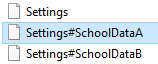
- You should now have 3 Settings files in this folder; the original, called Settings, and then Settings#SchoolDataA and Settings#SchoolDataB
- Copy both of the renamed Settings files to the client(s) which require access to more than 1 database (directory example: C:\Program Files (x86)\4Matrix). Note that you must keep the original Settings file in place for this process to work. In this example, Settings#SchoolDataA is a duplicate of the original Settings file:
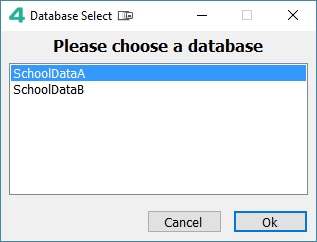
- Now open Launcher.exe on the client (also in C:\Program Files (x86)\4Matrix) and it should ask you which database you want to connect to. Note that the original Settings file is not shown as an option, which is why we have duplicated it as Settings#SchoolDataA:
- When using a second or consecutive database for the first time, 4Matrix will prompt for a licence key - use your School ID to licence your new database(s)
Notes:
Clients that should be restricted to using 1 database can still use a Settings File called 'Settings' - the name doesn't matter, provided the information in the Settings file itself is correct and the client is pointing to the correct database.